Explain a PDF lesson with annotations and voice
Drafello lets you open a PDF in a browser workspace, write over its pages and record your explanation. Use it to walk through a worksheet, explain a diagram or turn your own lesson handout into a narrated video. You choose what to write and say; the tool does not automatically generate the lesson.
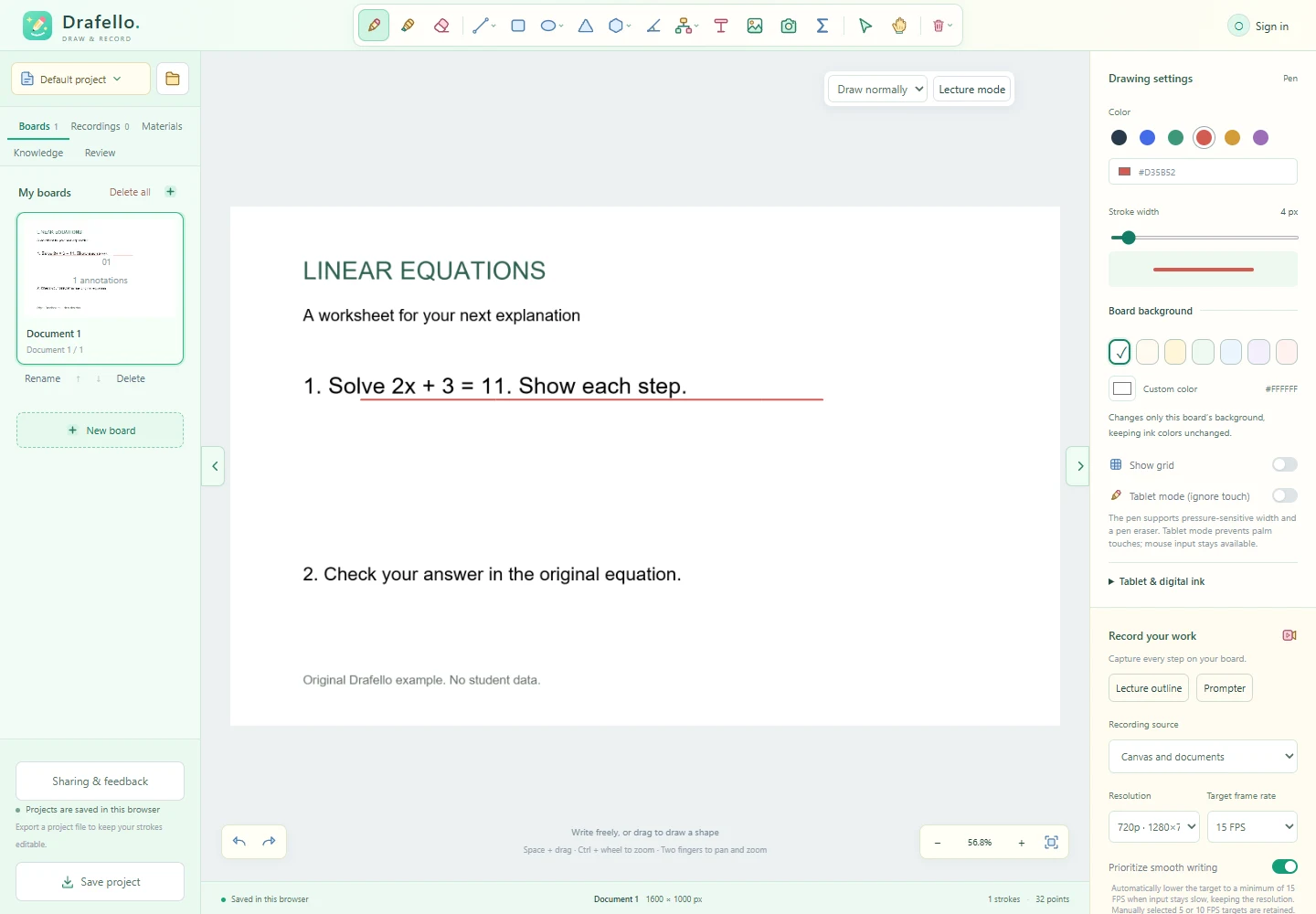
Try a complete PDF lesson: from worksheet to saved video
Use our original one-page worksheet to explain 2x + 3 = 11. This walkthrough shows the actual Drafello workspace, recording controls and export menu. Start with a short practice run before recording a full class.
Visual description of the sample: the worksheet asks you to solve 2x + 3 = 11. The equation is underlined, then the working shows 2x = 11 − 3, 2x = 8, x = 8 / 2 and x = 4. The final check substitutes 4 into the original equation. The steps below also provide suggested narration.
1. Download and open the practice PDF
Download the worksheet below. Choose Open a PDF on this page, then select linear-equations.pdf in the document picker. Wait until Document 1 / 1 is ready. For your own lesson, use a PDF you created or have permission to teach from. PDFs are processed locally in your browser.
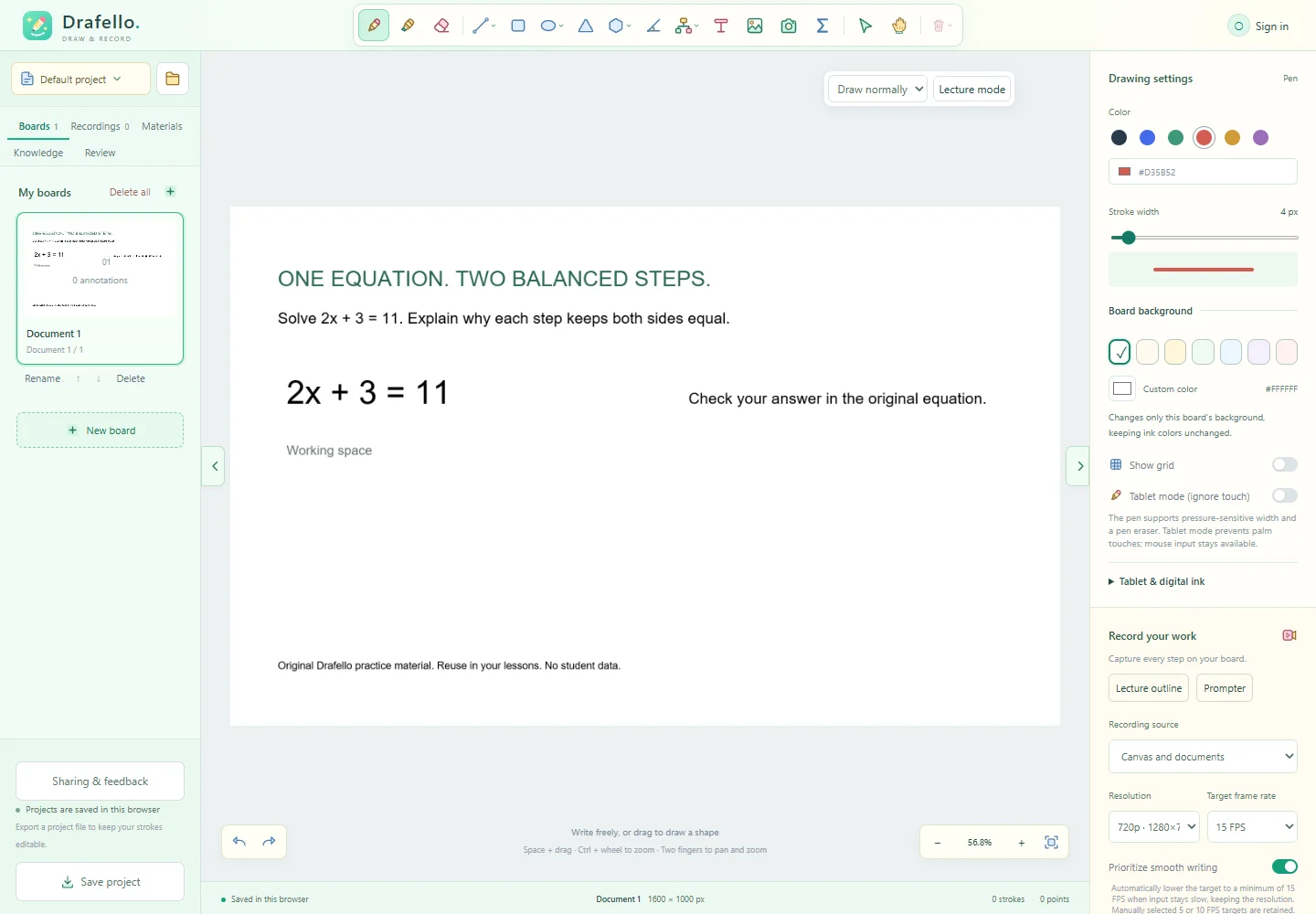
2. Set up the frame and microphone
Fit the page so the question and working area are readable. For a first test, choose 720p, 15 FPS and Microphone only. Click Start recording and allow microphone access when your browser asks. Speak a short sentence, then stop, save and play it back to check the audio before your full take. If permission is denied, allow the microphone in your browser site settings and retry.
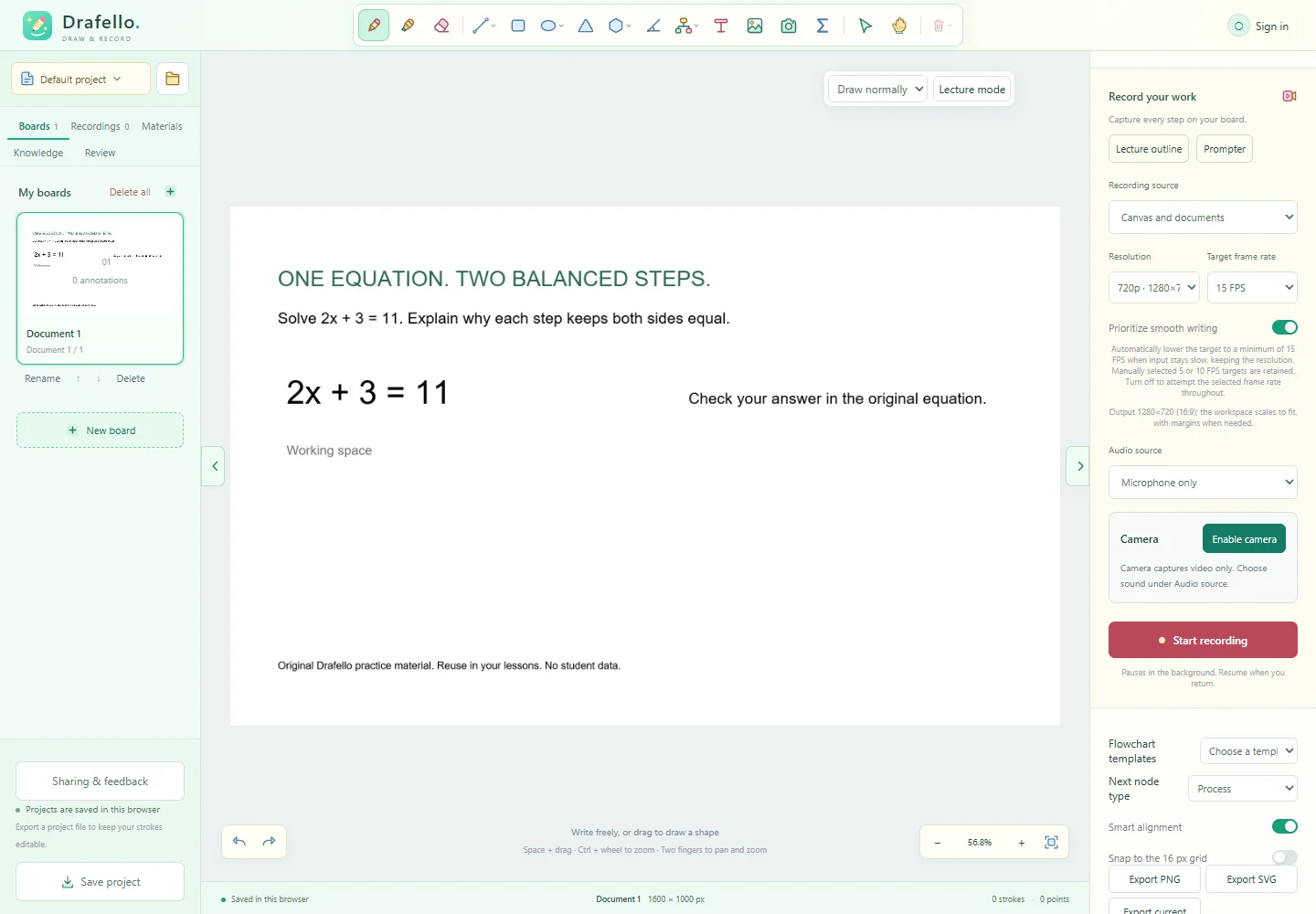
3. Record the first balanced step
Click Start recording for your lesson. Underline 2x + 3 = 11 with the Pen tool. Say “Subtract three from both sides to keep the equation balanced.” Write 2x = 11 − 3, then 2x = 8 in the working space. You can handwrite with a mouse or compatible pen; the example uses the Text tool for readable working and the Pen tool for the underline.
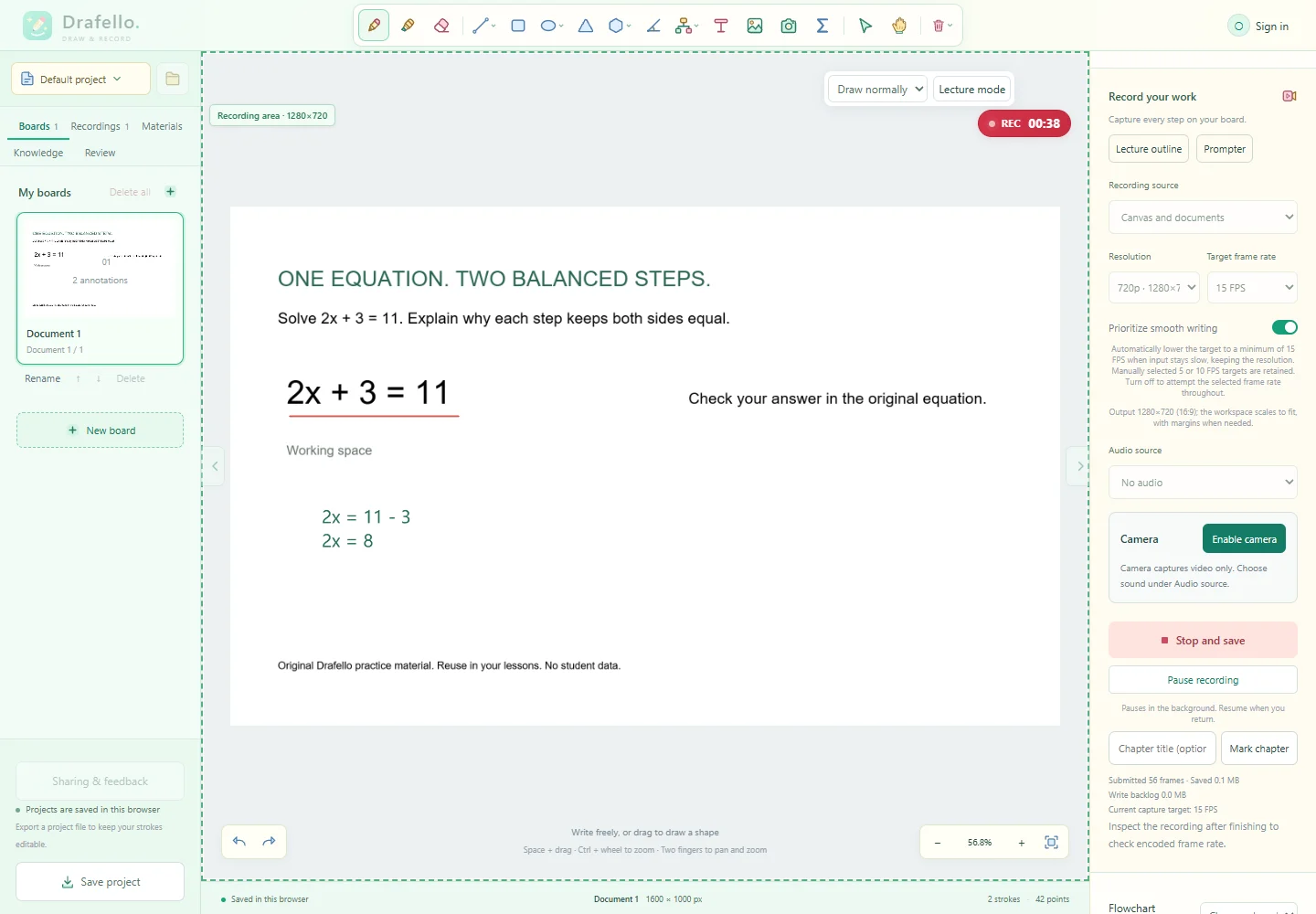
4. Pause, prepare and resume
Choose Pause recording when you need to prepare your next explanation. Choose Resume recording before continuing the lesson. Keep the recording tab visible; backgrounding a canvas recording pauses it. In this example, continue by dividing both sides by two: x = 8 / 2, so x = 4.
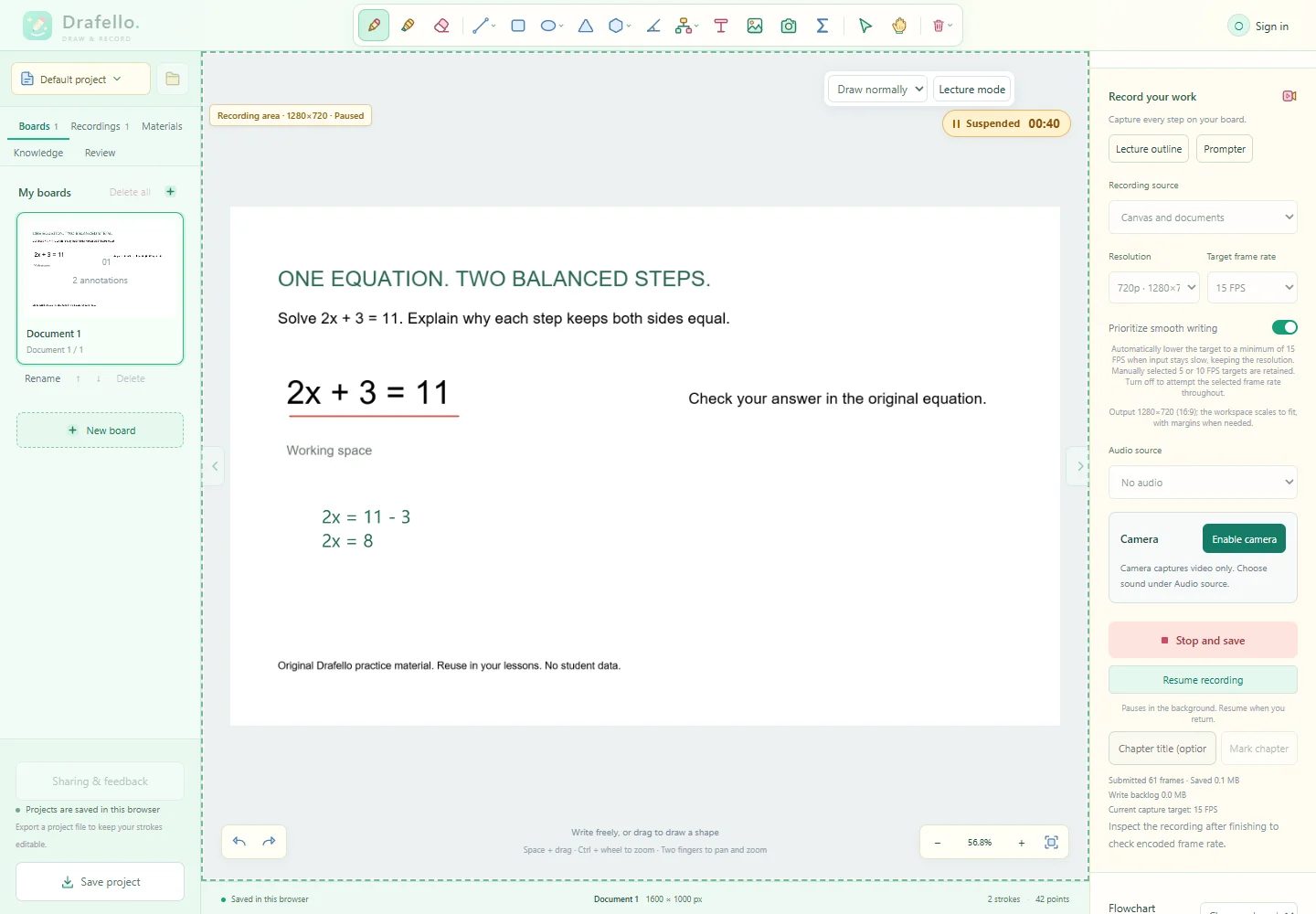
5. Check the answer and save the recording
Write the substitution check: 2 × 4 + 3 = 11. Say “Our answer makes the original equation true.” Click Stop and save and wait for the recording to appear in the recordings list. Open Play / Edit, play the result and check that the question, each step and your voice are clear. Saving here stores the recording in this browser; it is not a cloud backup.
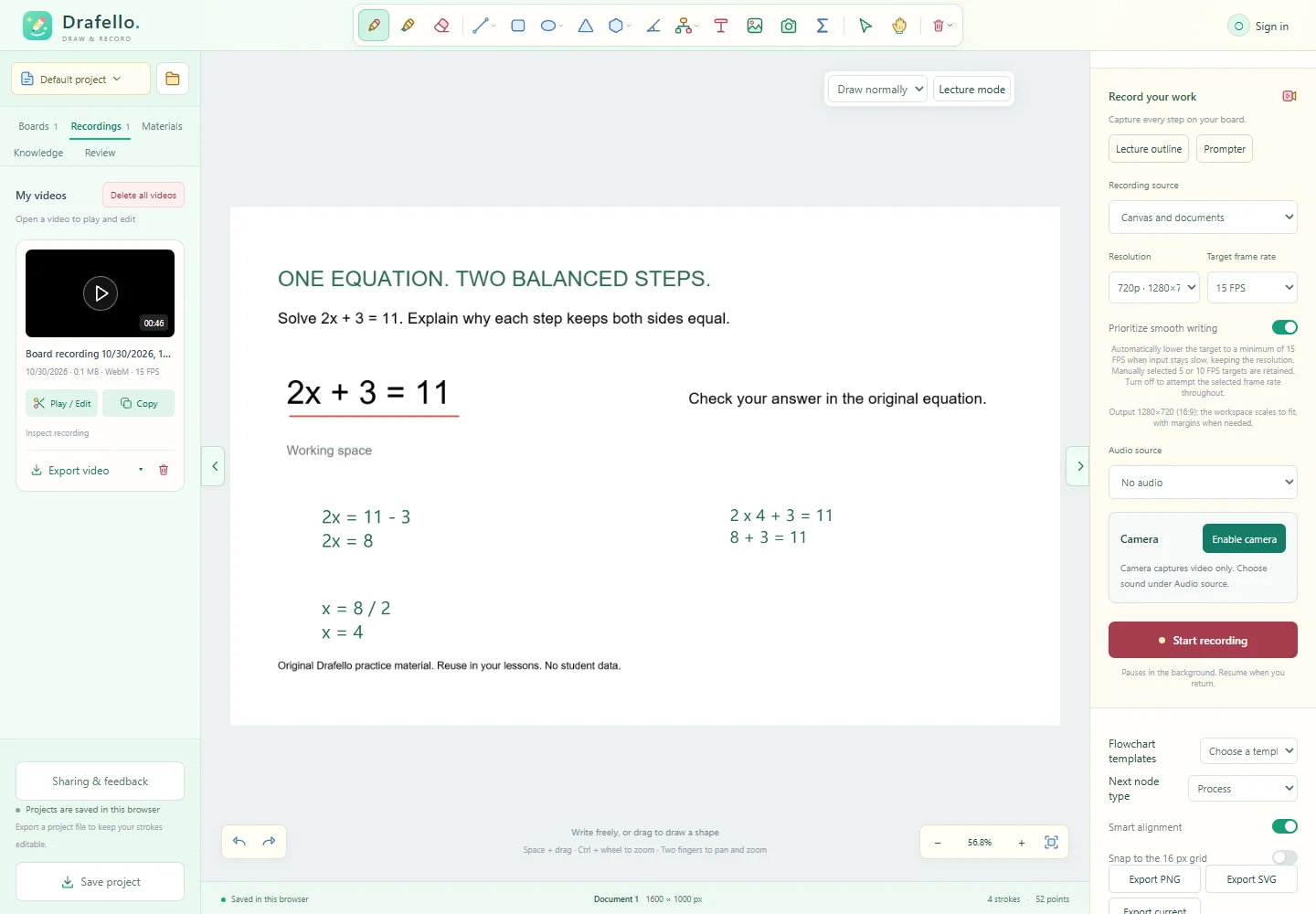
6. Export a copy you can keep
Open Export video in the recordings list. In a supported desktop browser, Save video as… keeps the recording file, while Convert & save MP4 as… converts it to MP4 and asks for a save location. If your browser offers export through Play / Edit, use that route instead. Open the exported file to confirm playback. Keep a project backup as well if you want to edit the annotations later; see Plans and pricing for current backup and watermark limits.
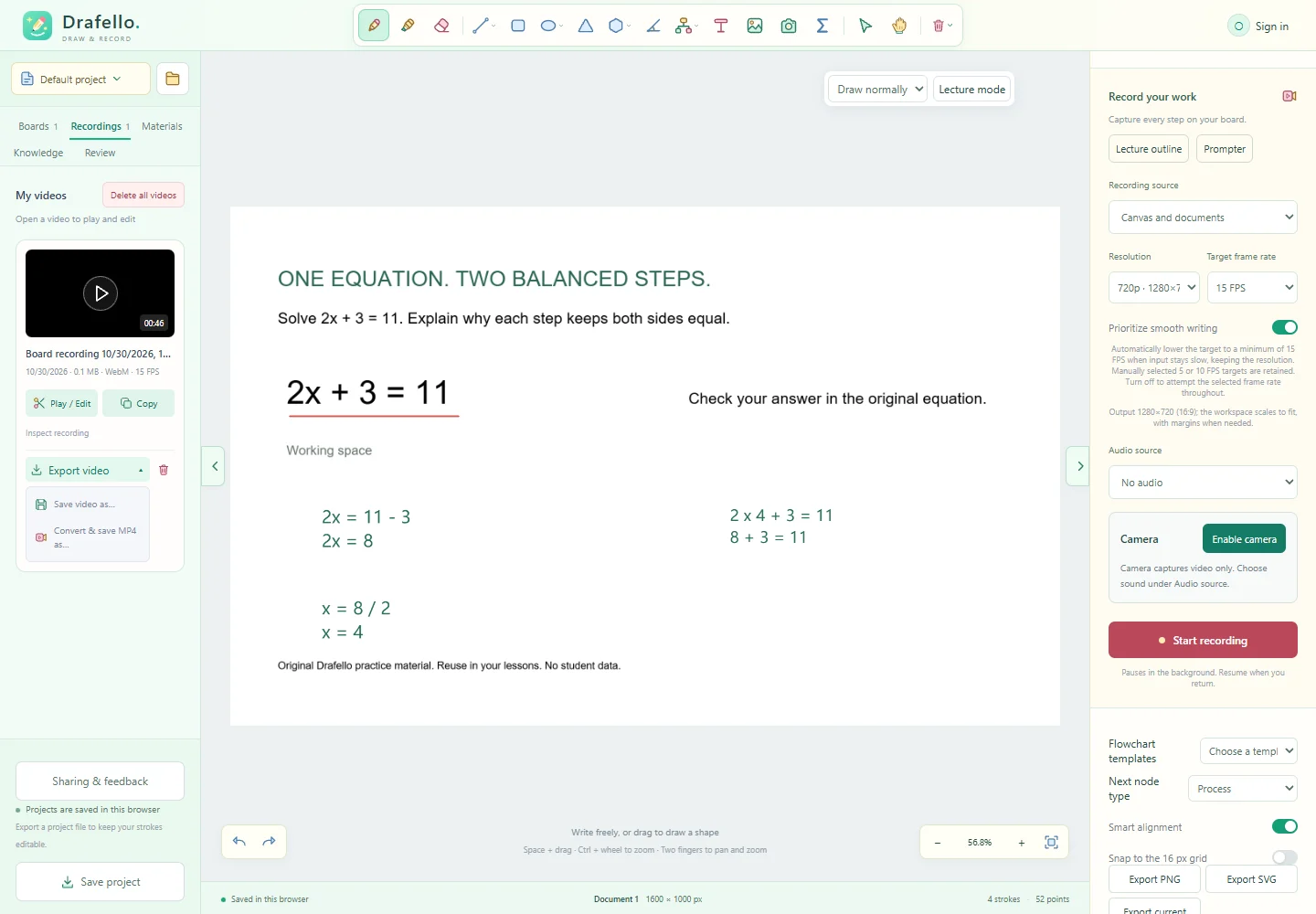
Need more recording help? Read Record a whiteboard lesson. Check Plans and pricing for current export and backup options, or contact support if a step fails.
Keep the worksheet beside the explanation
Start with a PDF you created or have permission to use. Highlight the question, underline key information and add handwritten steps or diagrams. The document provides the starting material; your annotations show how to work through it.
Example: use a one-page worksheet containing 2x + 3 = 11. Highlight the equation, write each transformation beside it and check the answer in a different color. Explain why each step is valid while recording.
Make a narrated PDF lesson
- Open the document picker and select your PDF. Wait for its pages to load.
- Move to the page you want to explain and choose a readable zoom level.
- Select your drawing or highlighting tools. Plan where the working will go so it does not cover the question.
- Choose recording settings and a microphone source, then make a short test recording.
- Record your explanation while annotating the pages. Pause when you need to prepare the next part.
- Save and review the result. Keep an exported copy and a suitable project backup.
For the recording setup and playback checks, follow Record a whiteboard lesson.
Is my PDF uploaded for conversion?
PDF processing happens locally in your browser. Office files, including Word, Excel and PowerPoint, use cloud conversion before annotation. Cloud backups are a separate feature that uploads a project when used. These are different workflows; local PDF processing does not mean every product feature operates offline. Read Privacy policy for data handling details.
Does Drafello edit the original PDF text?
This workflow adds annotations over document pages. It should not be treated as an editor for replacing the original PDF text. Keep your source document if you need to change the underlying lesson material.
Can I use the pages as study notes too?
Yes. You can use annotations and your own explanations to work through a topic without recording a video. See Visual study notes for examples of turning a question or diagram into structured notes.
What should I check before a long recording?
Check the page readability, microphone sound and a short exported sample on your device. Recording and export behavior varies by browser and hardware. Projects saved only in this browser can be lost if its site data is cleared. See Plans and pricing for backup and export options, or Contact support if the workflow fails.