How to record a whiteboard lesson with audio
To record a lesson in Drafello, prepare your board, choose an audio source, check a short sample and record your explanation. Save the result and keep an exported copy. This walkthrough uses one simple equation so you can learn the workflow before recording a longer lesson.
Before you start
Use a desktop browser; Chrome or Edge is recommended for recording and export. Connect your microphone if you use an external one. Choose an example you are comfortable explaining. You can draw with a mouse or a compatible pen device. Available options and performance depend on your setup.
1. Prepare a readable board
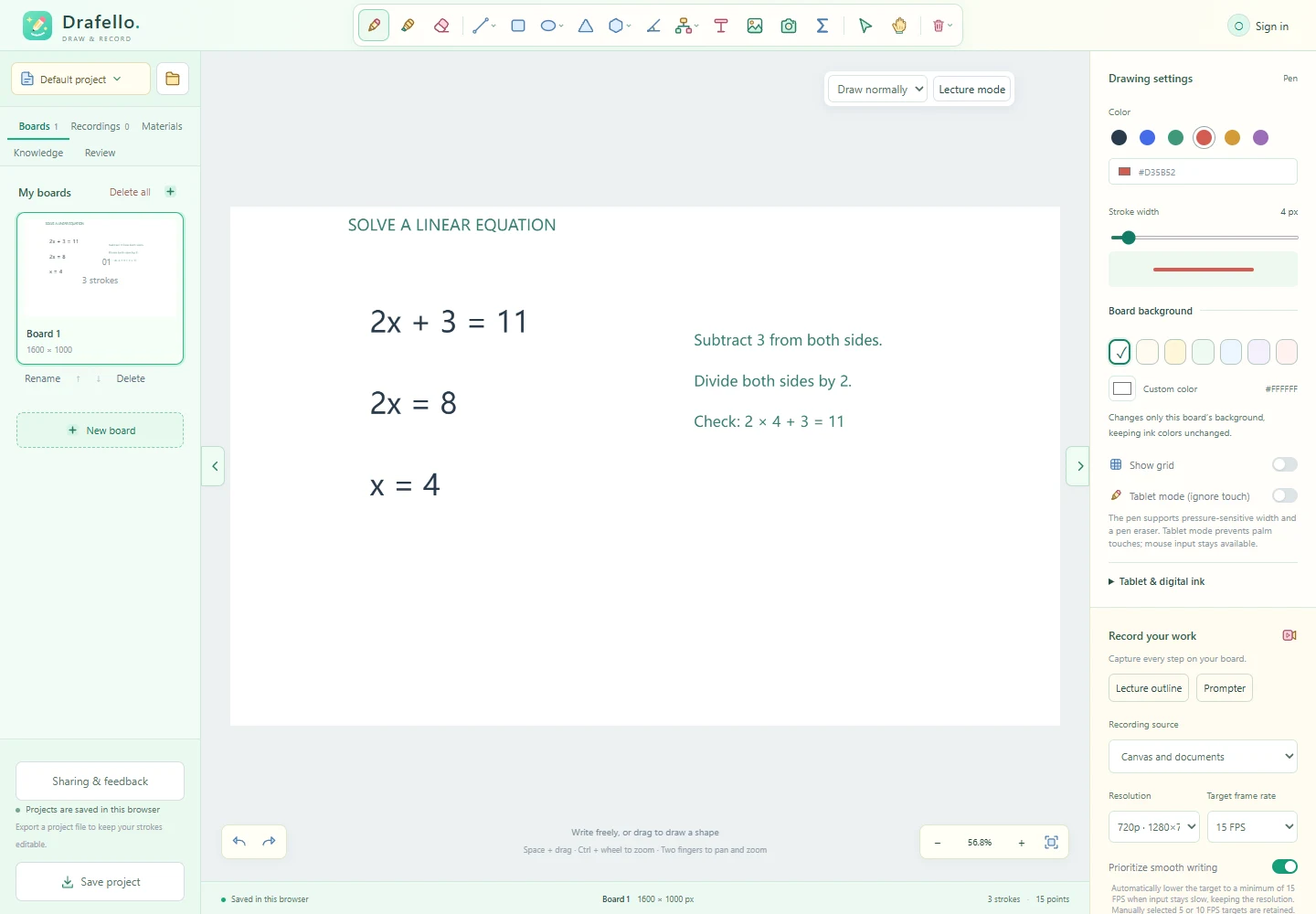
Open Drafello's whiteboard. Write 2x + 3 = 11 near the top and leave space underneath. Choose a pen width and zoom level that keep the working readable. Keep only the material needed for this explanation in view.
2. Choose recording and audio settings
Open the recording controls and select a resolution suitable for your device. Choose your microphone source and accept the browser's permission request. If you need system audio, check the options your browser and operating system actually provide; microphone permission alone does not enable every audio source.
3. Make a short test
Record yourself saying a sentence while writing a line on the board. Stop and play the recording back. Confirm that you can hear your voice and read the writing. Check an exported sample using the available export options before preparing a long lesson.
4. Record the explanation
Start your lesson recording. Explain the question, subtract 3 from both sides, divide both sides by 2 and check x = 4 in the original equation. Speak about the reason for each step as you write. Pause and resume when you need a break.
5. Review and keep the result
Save the recording and play it back. Check the beginning, the working and the final answer. Export a copy you want to keep. Also save an appropriate editable project backup if you want to return to the board later. A video export and an editable project backup serve different purposes.
Local browser storage can be deleted when site data is cleared. Free basic project backups, Pro full packages and cloud backups have different scopes; see Plans and pricing.
If the test has no sound
Check the browser's microphone permission, the selected audio source and whether the microphone is muted. Record another short sample after changing a setting. If the issue continues, use Contact support with your browser and operating system details; do not send private lesson materials unless needed and appropriate.
If the writing is hard to read or playback stutters
Increase the writing size or zoom before recording. If your device struggles, try a lower recording resolution or frame-rate setting and test again. Keep the sample short until you have a usable result.
Next: Record a PDF lesson, or make visual study notes before your next explanation.